EDR Incident Response Playbook: Containing Local Account Incidents
Local Windows accounts remain a challenge during incident response. As incident responder you probably recognize the struggle of responding to incidents that include local accounts, the response capabilities for AD or Entra accounts are there. Native password, disable and token rotation features exsits in the portal, but for local accounts these functions are not supported. This blog describes how you can solve this gap using a single script to combat incidents in which local accounts are usied in the attach chain.
Local accounts are a recurring persistence mechanism. According to Mandiant’s 2026 M‑Trends report, local accounts appear in 3.2% of investigations, mapped to ATT&CK technique T1136.001.
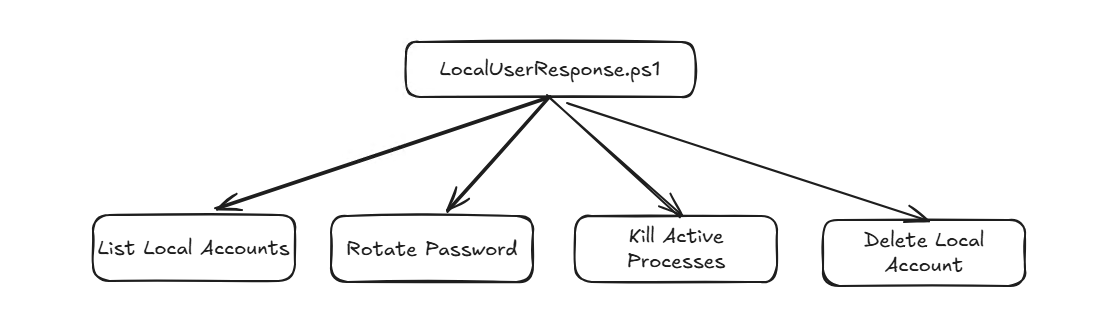
Response script
The LocalUserResponse.ps1 script is designed for incident response on windows assets where local accounts are part of the attack path. Instead of manually running separate commands, the script gives you one workflow to enumerate accounts, contain active threats, and apply remediation actions directly from Live Response.
Recommended order of operations during active compromise:
- Run
-Listand map suspicious SIDs to local privilege context. - Run
-Killto terminate interactive and tooling processes owned by the compromised SID. - Decide between
-Rotate(retain account for business continuity) or-Delete(remove persistence). - Re-run
-Listand validate expected state before closing containment.
| Function | Example | Description |
|---|---|---|
| List | .\LocalUserResponse.ps1 -List | Lists all local user accounts and shows whether they are administrators or non-administrators. |
| Rotate | .\LocalUserResponse.ps1 -Rotate "S-1-5-21-1234567890-1234567890-1234567890-1001" | Generates a new random password for the specified local user SID and applies it. |
| Delete | .\LocalUserResponse.ps1 -Delete "S-1-5-21-1234567890-1234567890-1234567890-1001" | Deletes the specified local user account (except protected built-in system accounts). |
| Kill | .\LocalUserResponse.ps1 -Kill "S-1-5-21-1234567890-1234567890-1234567890-1001" | Stops all running processes that belong to the specified local user SID. |
Full script, including example commands, also availble on GitHub:
<#
.Description: Response to local user accounts - list all accounts with admin status, rotate passwords, kill processes, or delete accounts.
.Documentation: -
.Required Permissions: Administrator

.Example:
    .\LocalUserResponse.ps1 -List
.Example:
    .\LocalUserResponse.ps1 -Rotate "S-1-5-21-1234567890-1234567890-1234567890-1001"
.Example:
    .\LocalUserResponse.ps1 -Delete "S-1-5-21-1234567890-1234567890-1234567890-1001"
.Example:
    .\LocalUserResponse.ps1 -Kill "S-1-5-21-1234567890-1234567890-1234567890-1001"
.Example Live Response:
    run LocalUserResponse.ps1 -parameters "-List"
    run LocalUserResponse.ps1 -parameters "-Rotate S-1-5-21-1234567890-1234567890-1234567890-1001"
    run LocalUserResponse.ps1 -parameters "-Kill S-1-5-21-1234567890-1234567890-1234567890-1001"
    run LocalUserResponse.ps1 -parameters "-Delete S-1-5-21-1234567890-1234567890-1234567890-1001"
#>

param (
    [Parameter(Mandatory = $false)]
    [switch]$List,

    [Parameter(Mandatory = $false)]
    [string]$Rotate,

    [Parameter(Mandatory = $false)]
    [string]$Delete,

    [Parameter(Mandatory = $false)]
    [string]$Kill
)

# Function to generate a random 20-character password
function New-RandomPassword {
    $chars = 'abcdefghijklmnopqrstuvwxyzABCDEFGHIJKLMNOPQRSTUVWXYZ0123456789!@#$%^&*'
    $password = -join (1..20 | ForEach-Object { $chars[(Get-Random -Maximum $chars.Length)] })
    return $password
}

# Function to get local users
function Get-LocalUsers {
    $users = Get-LocalUser
    $admins = (Get-LocalGroupMember -Group Administrators).Name
    return @($users, $admins)
}

# Function to check if a user is an administrator
function Test-IsAdmin {
    param([string]$Username, [array]$AdminNames)
    foreach ($admin in $AdminNames) {
        if ($admin -like "*$Username") {
            return $true
        }
    }
    return $false
}

# List all local accounts
if ($List) {
    Write-Host "Listing all local accounts on this device..." -ForegroundColor Cyan
    Write-Host ""

    $result = Get-LocalUsers
    $users = $result[0]
    $admins = $result[1]

    Write-Host "ADMINISTRATORS:" -ForegroundColor Yellow
    Write-Host ("=" * 80)
    foreach ($user in $users) {
        if (Test-IsAdmin $user.Name $admins) {
            Write-Host "SID: $($user.SID)" -ForegroundColor Green
            Write-Host "Name: $($user.Name)" -ForegroundColor Green
            Write-Host ""
        }
    }

    Write-Host "NON-ADMINISTRATORS:" -ForegroundColor Yellow
    Write-Host ("=" * 80)
    foreach ($user in $users) {
        if (-Not (Test-IsAdmin $user.Name $admins)) {
            Write-Host "SID: $($user.SID)" -ForegroundColor White
            Write-Host "Name: $($user.Name)" -ForegroundColor White
            Write-Host ""
        }
    }
}

# Rotate password for a user
elseif ($Rotate) {
    Write-Host "Rotating password for user with SID: $Rotate" -ForegroundColor Cyan

    try {
        $user = Get-LocalUser | Where-Object { $_.SID -eq $Rotate }

        if ($null -eq $user) {
            Write-Host "Error: User with SID '$Rotate' not found." -ForegroundColor Red
            exit 1
        }

        $newPassword = New-RandomPassword
        $securePassword = ConvertTo-SecureString $newPassword -AsPlainText -Force

        Set-LocalUser -SID $Rotate -Password $securePassword

        Write-Host "Successfully rotated password for user: $($user.Name)" -ForegroundColor Green
        Write-Host "New Password: $newPassword" -ForegroundColor Yellow
    }
    catch {
        Write-Host "Error rotating password: $_" -ForegroundColor Red
        exit 1
    }
}

# Delete a local account
elseif ($Delete) {
    Write-Host "Deleting user with SID: $Delete" -ForegroundColor Cyan

    try {
        $user = Get-LocalUser | Where-Object { $_.SID -eq $Delete }

        if ($null -eq $user) {
            Write-Host "Error: User with SID '$Delete' not found." -ForegroundColor Red
            exit 1
        }

        # Prevent deletion of critical system accounts
        $criticalAccounts = @('Administrator', 'Guest', 'DefaultAccount', 'WDAGUtilityAccount')
        if ($user.Name -in $criticalAccounts) {
            Write-Host "Error: Cannot delete critical system account '$($user.Name)'." -ForegroundColor Red
            exit 1
        }

        Remove-LocalUser -SID $Delete

        Write-Host "Successfully deleted user: $($user.Name)" -ForegroundColor Green
    }
    catch {
        Write-Host "Error deleting user: $_" -ForegroundColor Red
        exit 1
    }
}

# Kill all processes running under a user
elseif ($Kill) {
    Write-Host "Killing all processes running under user SID: $Kill" -ForegroundColor Cyan

    try {
        $user = Get-LocalUser | Where-Object { $_.SID -eq $Kill }

        if ($null -eq $user) {
            Write-Host "Error: User with SID '$Kill' not found." -ForegroundColor Red
            exit 1
        }

        $username = $user.Name

        $processes = @()
        $allProcesses = Get-CimInstance -ClassName Win32_Process
        foreach ($process in $allProcesses) {
            try {
                $ownerSidResult = Invoke-CimMethod -InputObject $process -MethodName GetOwnerSid
                if ($ownerSidResult.Sid -eq $Kill) {
                    $processes += $process
                }
            }
            catch {
                # Some system processes may not return owner details; ignore and continue.
            }
        }

        if ($processes.Count -eq 0) {
            Write-Host "No processes found running under user: $username" -ForegroundColor Yellow
            exit 0
        }

        $killCount = 0
        foreach ($process in $processes) {
            try {
                Stop-Process -Id $process.ProcessId -Force
                Write-Host "Killed process: $($process.Name) (PID: $($process.ProcessId))" -ForegroundColor Green
                $killCount++
            }
            catch {
                Write-Host "Failed to kill process $($process.Name) (PID: $($process.ProcessId)): $_" -ForegroundColor Red
            }
        }

        Write-Host "Successfully killed $killCount process(es) running under user: $username" -ForegroundColor Green
    }
    catch {
        Write-Host "Error killing processes: $_" -ForegroundColor Red
        exit 1
    }
}

else {
    Write-Host "No operation specified. Use one of the following parameters:" -ForegroundColor Yellow
    Write-Host "  -List              : List all local accounts" -ForegroundColor White
    Write-Host "  -Rotate <SID>      : Rotate password for a user" -ForegroundColor White
    Write-Host "  -Delete <SID>      : Delete a local account" -ForegroundColor White
    Write-Host "  -Kill <SID>        : Kill all processes running under a user" -ForegroundColor White
    Write-Host ""
    Write-Host "Examples:" -ForegroundColor Yellow
    Write-Host "  .\LocalUserResponse.ps1 -List" -ForegroundColor White
    Write-Host "  .\LocalUserResponse.ps1 -Rotate `"S-1-5-21-1234567890-1234567890-1234567890-1001`"" -ForegroundColor White
    Write-Host "  .\LocalUserResponse.ps1 -Delete `"S-1-5-21-1234567890-1234567890-1234567890-1001`"" -ForegroundColor White
    Write-Host "  .\LocalUserResponse.ps1 -Kill `"S-1-5-21-1234567890-1234567890-1234567890-1001`"" -ForegroundColor White
}
Executing Local Account Response with Defender Live Response
The trough value of such scripts is achieved when it is integrated with EDR solutions, as you want to run the script centrally instead of locally on the infected system. Running it locally on the infected system enhances the risk. Centralized response through remote operations solutions improves both speed and control.
While this post focuses on Defender for Endpoint, the same responder workflow can be implemented on other platforms using their native capabilities, such as CrowdStrike Falcon’s Real Time Response, SentinelOne’s RemoteOps or if the EDR does not have similar features Intune canb e used to execute the remote script. The syntax differs per product, but the incident response logic stays the same.
Interested in more Live Response content? Have a look at part 3 of the incident response series Incident Response Part 3: Leveraging Live Response.
Add Script to Defender Live Response
To upload the response script to Defender For Endpoints Live Response library navigate to Settings -> Endpoints -> General -> Library Management. From Library Management you can preview the file contents or upload new versions going forward.
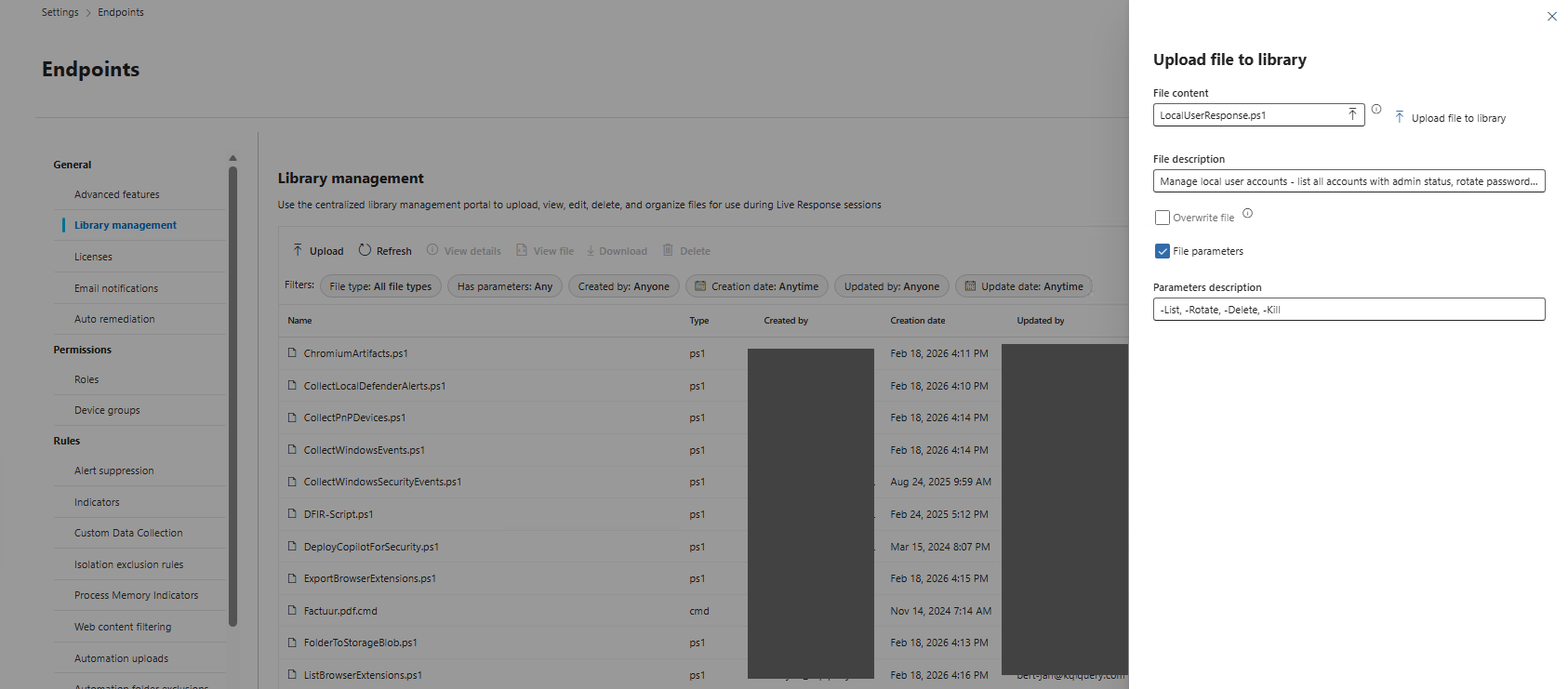
The live response library in the image above is filled with different response script, you can get these from the Incident-Response-Powershell repository.
Live Response Actions
After uploading the script, open a Live Response session on the impacted device and run one of the commands below.
These are the only commands you need during triage and containment. The -parameters is used to add parameters to live response scripts.
run LocalUserResponse.ps1 -parameters "-List"

run LocalUserResponse.ps1 -parameters "-Rotate S-1-5-21-1234567890-1234567890-1234567890-1001"

run LocalUserResponse.ps1 -parameters "-Kill S-1-5-21-1234567890-1234567890-1234567890-1001"

run LocalUserResponse.ps1 -parameters "-Delete S-1-5-21-1234567890-1234567890-1234567890-1001"
In order to run custom scripts you need to have the ability to run advanced live response commands. See the Live Response Docs for more info.
List Local Accounts
If local accounts were active recently, Defender can already show them in the device view. Use that as a quick way to identify likely user names and SIDs. The Logged on users (Last 30 days) pane is available on the right side of each device page.
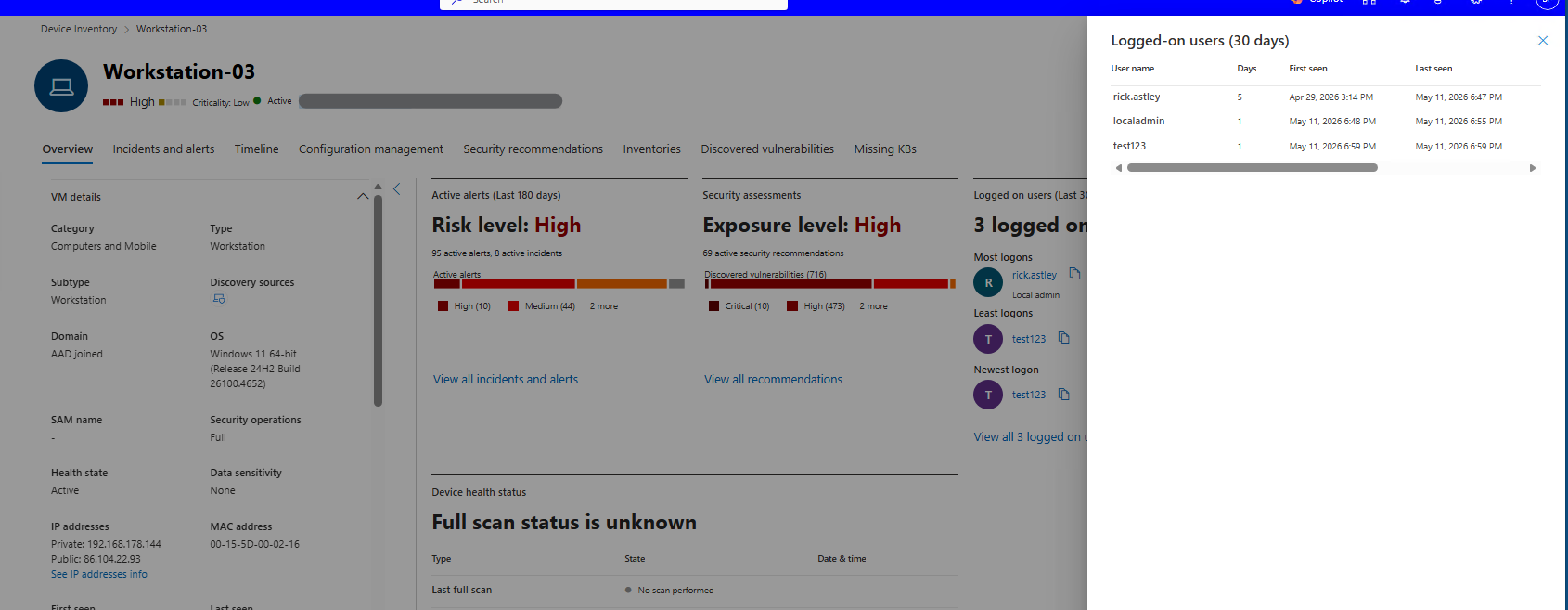
Then run -List in Live Response to confirm all local accounts and copy the exact SID to perform response capabilities.
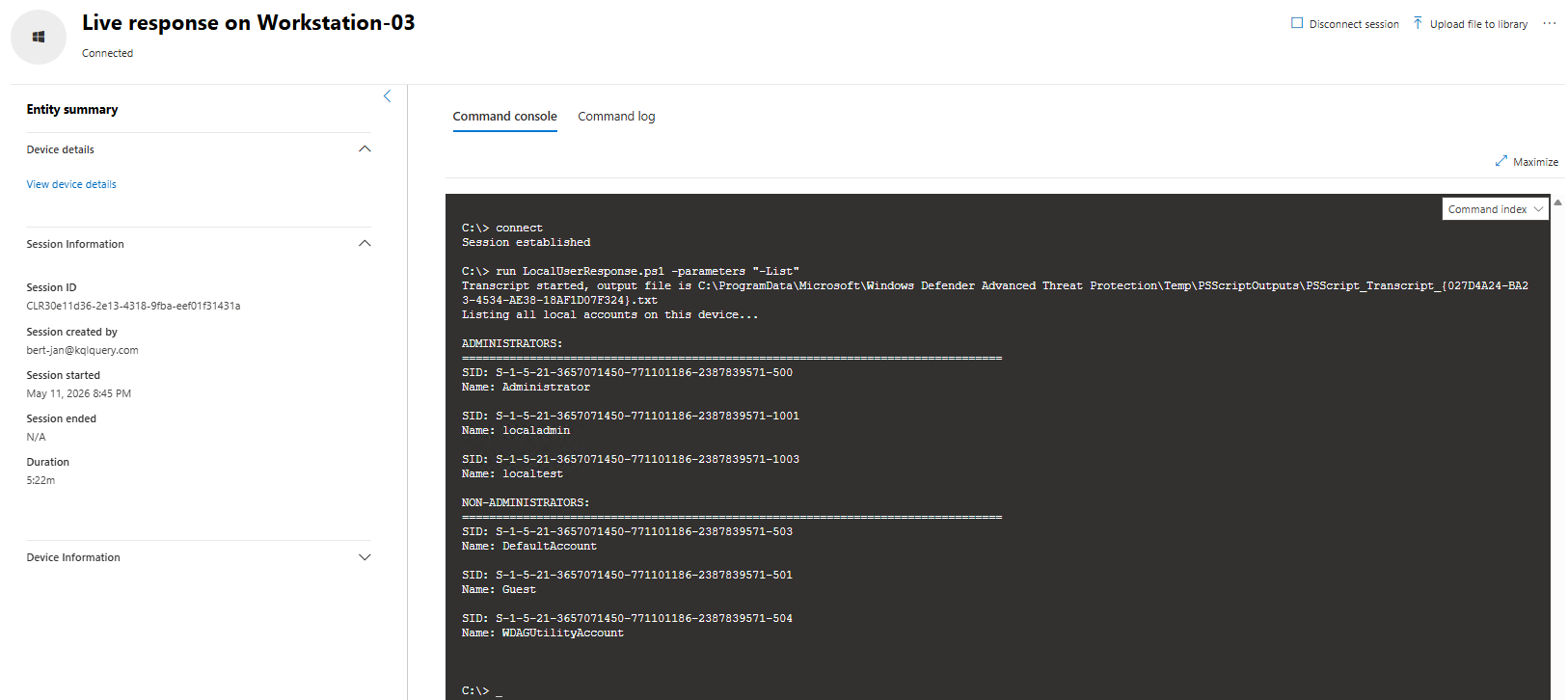
Kill Active Processes
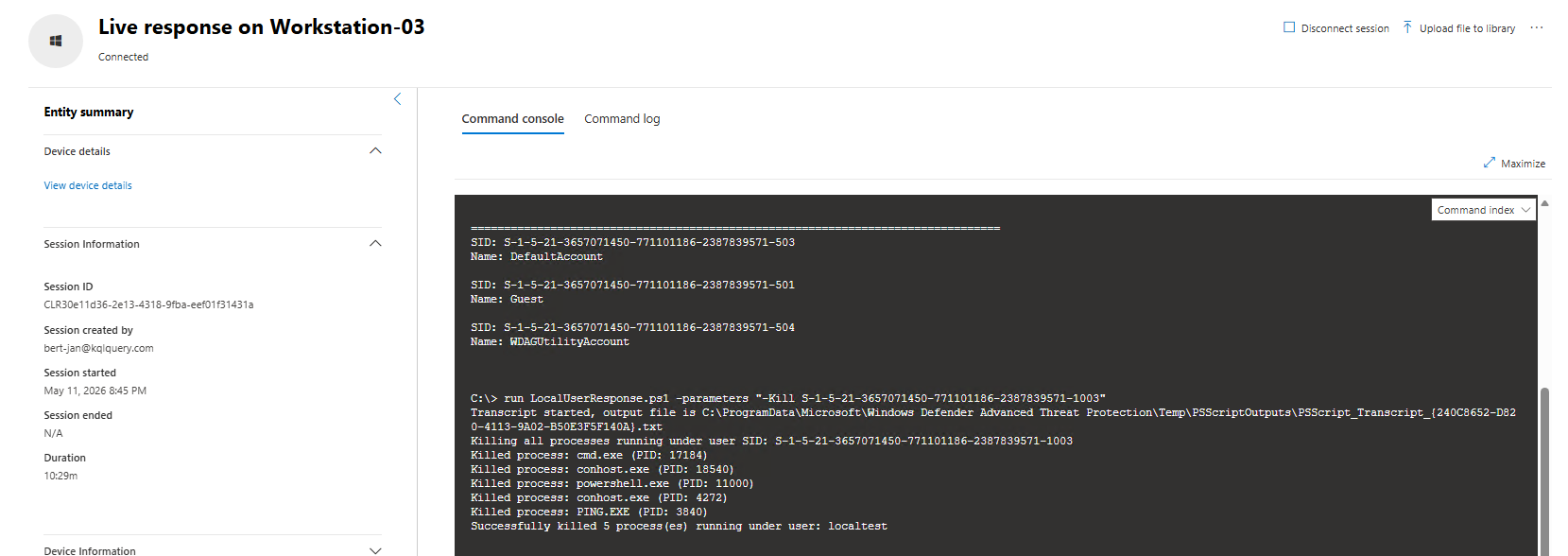
Use -Kill when you want to immediately stop activity for a compromised local account without removing the account yet. In this specific scenario cmd.exe, conhost.exe, powershell.exe and ping.exe were actively running as process of the compromised local account. These processes are killed to stop further impact, for example by killing RDP, WinRM, SSH sessions to other assets.
Delete Local Account
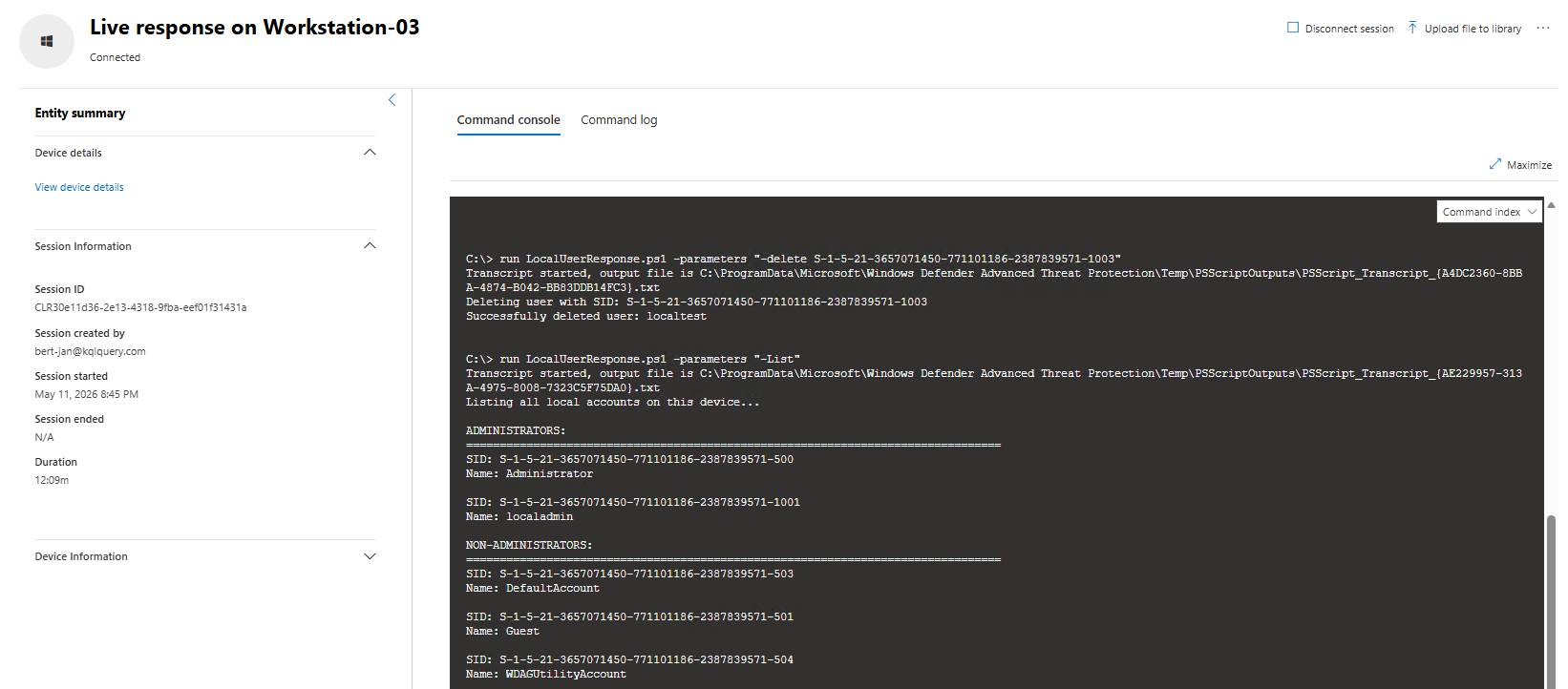
If the account is confirmed malicious or no longer needed, use -Delete to remove it. Run -List once more to verify the account is deleted from the device.
Scaling Local Account Response Across Multiple Endpoints with XDRInternals
Starting a live response session on each impacted assest from the portal does not scale. You can use the Defender For Endpoint API to scale the live response commands, the alternative to this is the usage of XDRInternals to scale the response. The steps on how the use XDRInternals to perform live response actions on asset is described below.
XDRInternals is a PowerShell module that provides direct access to the Microsoft Defender XDR portal APIs. It enables automation and scripting capabilities for managing and querying XDR resources including endpoints, identities, configurations, and advanced hunting queries. https://github.com/MSCloudInternals/XDRInternals
- Install XDRInternals & Sign-In
Install-Module XDRInternals

Connect-XdrByBrowser -Username 'admin@contoso.com'- Run Live Response commands
$DeviceId = "xxxxxxxxxxxxxxxxxxxxxxxxxxxxx"

$session = Connect-XdrEndpointDeviceLiveResponse -DeviceId $DeviceId -NonInteractive

Invoke-XdrEndpointDeviceLiveResponseCommand -SessionId $session.SessionId -Command 'run -id LocalUserResponse.ps1 -parameters "-List"' -CommandDefinitions $session.CommandDefinitions -RawCommandResult

# Disconnect sessions through the pipeline
$session | Disconnect-XdrEndpointDeviceLiveResponse
In production workflows, wrap this in a loop across impacted device IDs and export the raw command results (for example to JSON or CSV) so outcomes can be reviewed centrally.
Test Commands
Use the following test flow on a lab/test endpoint to validate the response capabilities, before using these actions during an incident.
- Create a temporary local user:
net user localtest <password> /add- (Optional) Add the user to the local Administrators group:
net localgroup "Administrators" "localtest" /add- Start a process in that user context so you can validate the
-Killaction:
runas /user:localtest cmd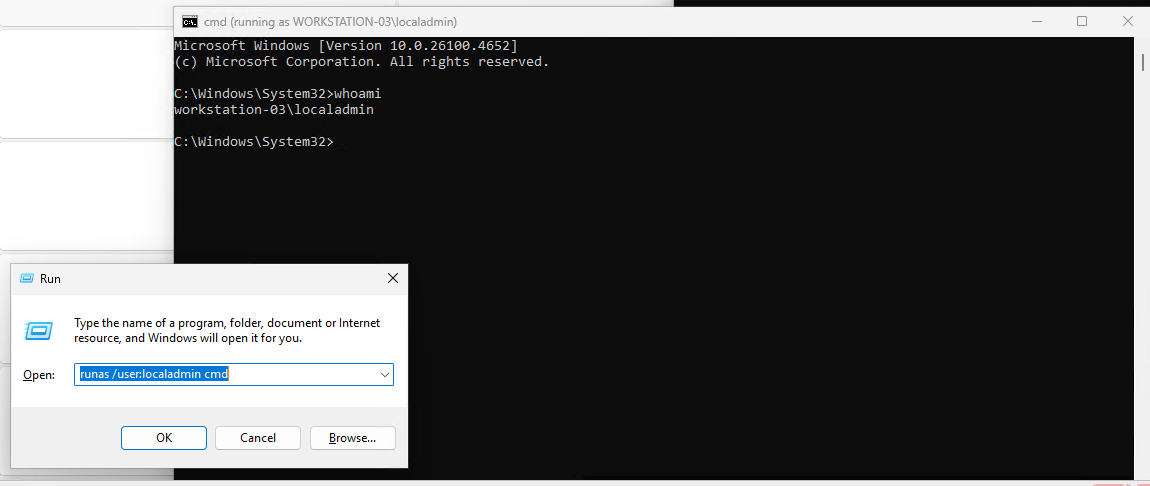
Next Steps After Containment
Containment is only the first phase. After you stop active threat investigate what actions the local account has done.
- Hunt for the compromised SID across all endpoint telemetry Use the SID as the pivot key and review what actions were executed by that identity in the searchwindow of the incident.
let CompromisedSid = "S-1-5-21-847362119-1904437765-3362810457-1129";
let SearchWindow = 48h; // Customize as needed: h = hours, d = days
union Device*
| where TimeGenerated > ago(SearchWindow)
| where AccountSid =~ CompromisedSid or InitiatingProcessAccountSid =~ CompromisedSid
| summarize TotalActions = count() by ActionType
| order by TotalActions desc
Expand investigation from action counts to full timeline After identifying
ActionTypevalues, investigate those events and build a timeline per device: first seen, last seen, parent process, remote logon context, and related network connections. This helps distinguish a single compromised host from broad multi-endpoint persistence.Add or tune detections for local account abuse Create detections for local user creation and local admin group additions so the same tradecraft is surfaced earlier in future incidents.
Examples:
Questions? Feel free to reach out to me on any of my socials.